
AI Fashion
How to Use Virtual Try-On With Clothes You Already Own
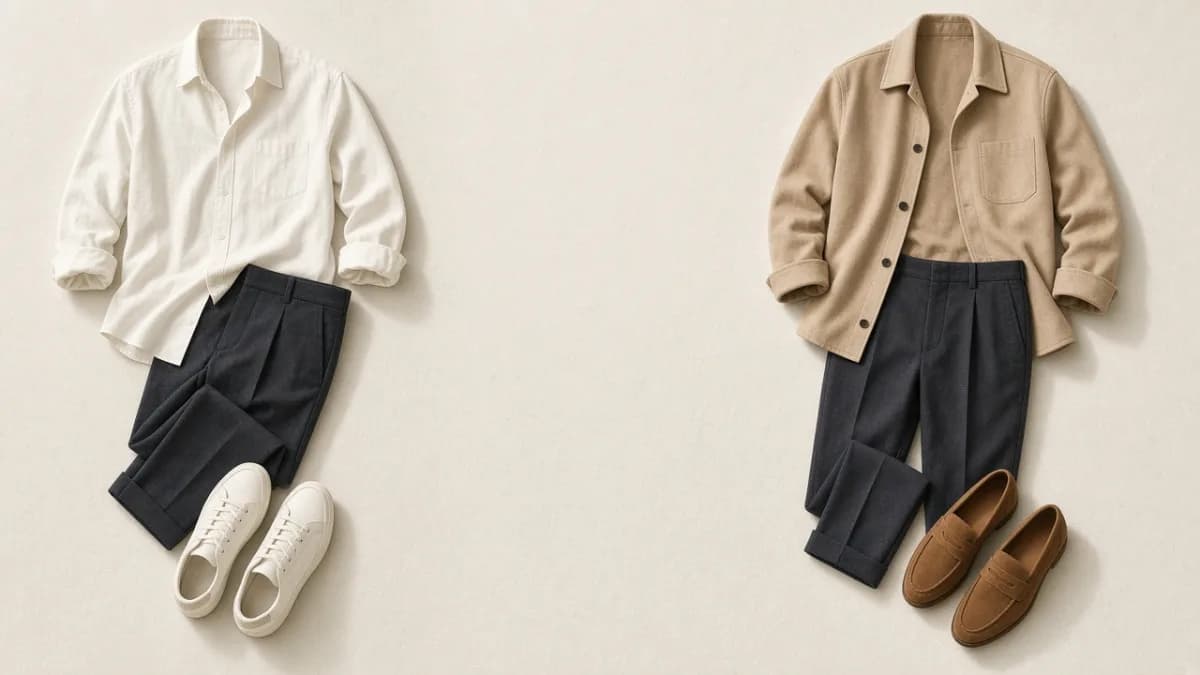
Use virtual try-on to compare two styling directions from garments you already own. Ignore fit claims, then put the winner on your body.
In this guide
Virtual try-on is most useful when you already own the clothes and cannot be bothered to get dressed twice. The job is to compare directions — this layer or that one, casual shoes or tidy ones — before you commit to putting them on.
It is not a fitting room. If you need the mechanism and the failure modes, read how AI virtual try-on works. This guide is about when to use it on a wardrobe you already have.
Start with a real outfit question
Try-on helps when two options are both plausible. It wastes time when you have not chosen any clothes yet.
Good questions:
- Does the sand jacket make this office outfit feel more finished than the open shirt?
- Does this dress look too formal next to the knit and trousers I was also considering?
- If I keep these navy trousers, do I prefer the white tee or the striped shirt on me, not on the hanger?
Poor questions:
- Will this size fit?
- Should I buy this from a screenshot?
- Can I skip trying the clothes on altogether?
Creating outfits from clothes you already own should come first. Try-on is a comparison step, not a replacement for choosing an anchor.
Use your own garments as the reference
The preview can only be as honest as the clothing you give it. A photo of the actual jacket in your closet is a better reference than a memory of it, and better than a random picture of a similar jacket.
That is why a digital wardrobe pairs naturally with try-on: you already have item photos to select. If those photos are dark or cropped, photograph the garment so the whole piece is visible before you judge the preview.
In Fashion Frame, set your photo through Sizing & Try-On, then select the clothing in Try-On Studio. Treat the result as a styling sketch of those pieces, not as a photograph of you wearing them.
Compare two directions, then stop
Generate a preview for option A and option B, then make a choice. If you keep requesting variations, you are no longer deciding; you are collecting pictures.
A simple loop:
- Pick the outfit's anchor (the trousers, the dress, the shoes you must wear).
- Choose two alternatives for the one thing you are unsure about.
- Preview both.
- Put the winner on your body.
If both previews look similar, the difference may not matter. Wear whichever is more comfortable.
What to ignore in the image
Generated pictures invent or drop details. Ignore anything you would not bet on:
- Exact hem length and waist placement
- How structured or slouchy the fabric will feel
- Logos, hardware, and small pattern repeats
- Whether sleeves will actually push up the way they do in the image
Use the preview for silhouette, color relationship, and formality. Confirm everything else in the mirror.
The same caution applies to AI stylist recommendations: a suggested combination can be previewed, then still be rejected because the waistband does not feel right.
When not to bother
Skip try-on when you already know the outfit works, when the clothes are in the wash, or when the only question is physical comfort. Also skip it when you do not have a person photo you are willing to use; do not upload someone else.
Review the privacy policy before you add a personal photo. Choose an image with even light and space for the clothing, then reuse it rather than creating a new one for every experiment.
After you choose
If the preview helped, put the clothes on and keep or drop the look based on movement and temperature. Save combinations that survive that check in Looks so you are not generating the same comparison next week.
Virtual try-on can shorten the path from “these two options” to “this one.” It cannot tell you that you will like wearing it.
A step-by-step example in Try-On Studio
This walkthrough uses the current web interface, checked on 12 October 2026. Native controls may be arranged differently.
Input — set the photo and select the garments. Use the Sizing & Try-On link to set your full-body photo, then return to Try-On Studio. Select your own photographed pieces, or use Load saved look. In this example the six references are the ivory shirt, burgundy knit, sand jacket, charcoal trousers, loafers and bag. Keep those references visible when judging the result.
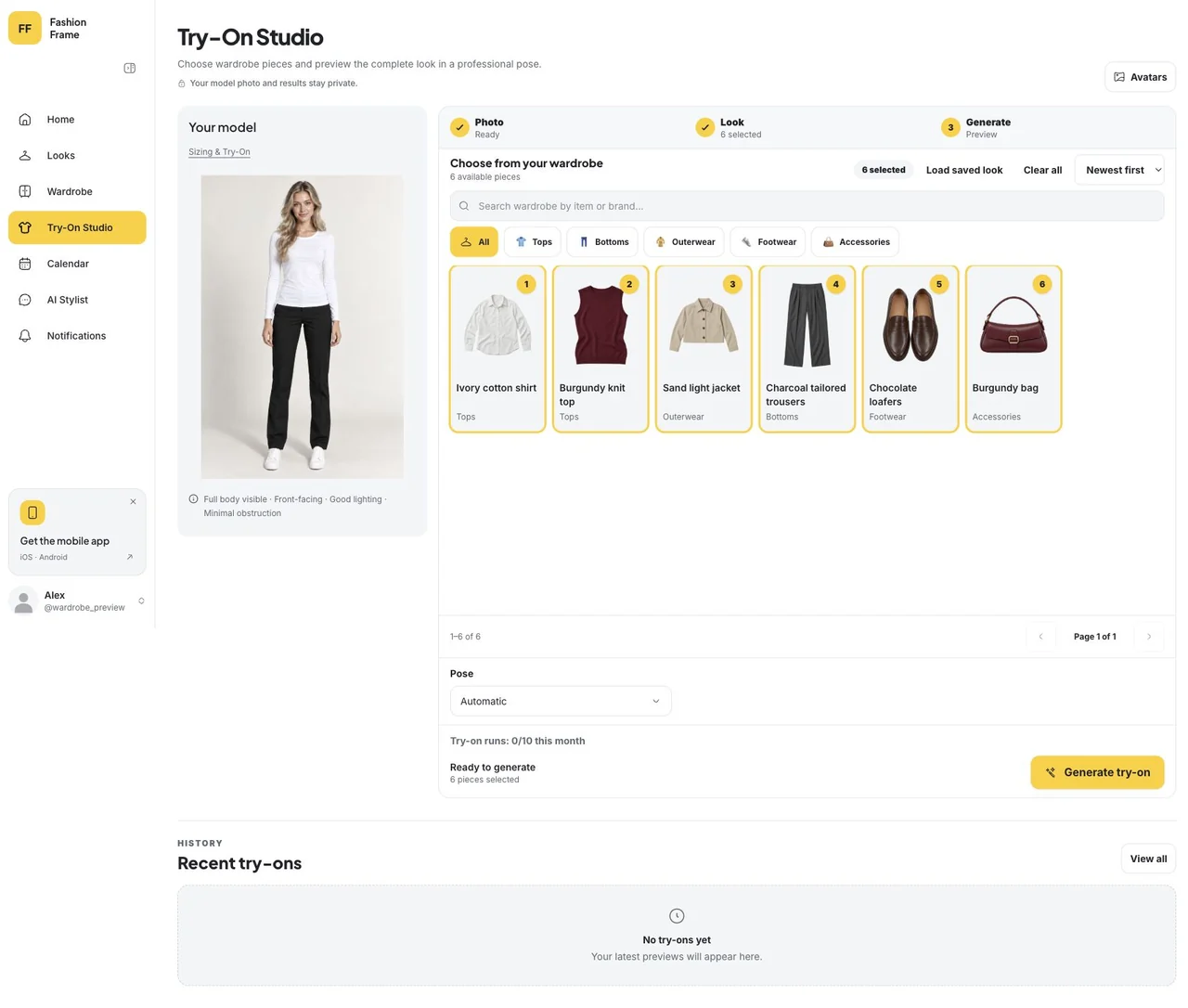
Action — request one preview. Leave the pose on Automatic or choose a supported pose, review the allowance beside Generate try-on, and press it. Wait for the preview before changing pieces. If the saved photo is unavailable, set it again through Sizing & Try-On and retry.
Result — compare, then choose what to keep. Switch between Photo and Result to inspect the styling direction. Recent try-ons keeps the preview, and Save as Avatar stores a completed result in Avatars without generating another image. Saving an image is different from saving the garment combination as a Look for planning.
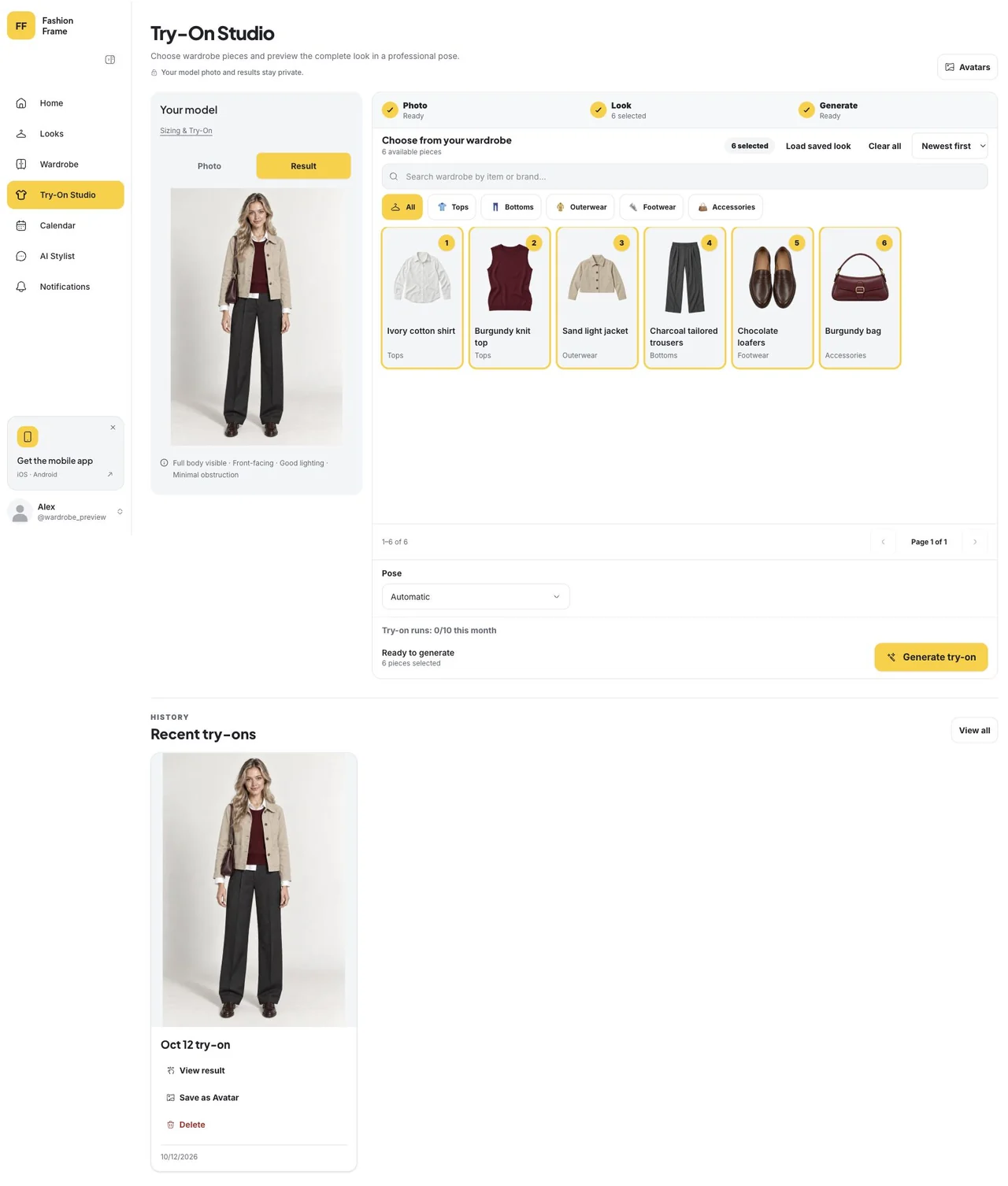
Look for altered hems, layering, patterns and accessories. If the image changes a detail that matters to your decision, discount that detail. Put the real clothes on before deciding about comfort or fit. The virtual try-on product page explains setup and links to current plan limits.
Frequently asked questions
Can I virtually try on clothes I already own?
Yes, if you have a photo of the garment and a person photo you are comfortable using. That is a different use from trying on products you might buy.
Will it show me how the clothes fit?
No. Fit is physical. Use the preview to compare styling directions, then try the real garments on.
How is this different from just holding clothes up in the mirror?
Holding clothes up is faster when the pieces are already in your hands. Try-on is more useful when the items are not together yet, or when you want to compare two complete directions without getting dressed twice.
Put the guide into practice
Start with your own wardrobe.
Preview a styling direction with your selected clothing and a clear photo.
Try Fashion FrameContinue reading
AI Fashion
How AI Virtual Try-On Works
AI virtual try-on creates a styling preview from a person photo and selected clothing. Learn what the image can show and what still needs a real fitting.
Outfit Ideas
How to Make an Outfit From Clothes You Already Own
To make an outfit, start with one anchor piece, add pieces that suit the same day, and let the shoes set the formality. A five-step method, eight outfit formulas, and the reasoning behind each.
Wardrobe
What Is a Digital Wardrobe? A Practical Guide to Starting One
A digital wardrobe, also called a digital closet or virtual closet, is a photo record of the clothes you own. Here is what to include, how to digitize your wardrobe in batches, and how to choose a wardrobe app.
AI Fashion
When Not to Use Virtual Try-On
Skip virtual try-on for fit, shopping screenshots, and days when you have not chosen clothes yet. Use it only to compare two owned-clothes directions.